You can build an app no code in seven steps: define one problem and its core user flow, choose a no-code app builder, map your data, build the core screens, add logins and payments only if you need them, run a pre-launch check, then hand off to launch. No-code means you assemble software with visual tools instead of writing source code. If you have been wondering how to create an app without coding, this is the order I would follow.
Quick answer: the seven steps
- Define one problem and the core user flow.
- Choose your no-code tool with a decision framework.
- Map your data and content structure.
- Build the core screens first.
- Add logins, payments, and integrations only if needed.
- Run a pre-launch check.
- Hand off to launch and plan iteration.
I built this site, MyTools, with Directify, a no-code directory builder. Full disclosure: that is the tool behind the site you are reading. My biggest lesson was about order. Every time I made a decision too early (a payment plan, a fancy filter, a custom login), I lost days. Every time I postponed one, the app got closer to real users. This guide gives you that order. Let's break it down.
Step 1: Define the One Problem and the Core User Flow
Most stalled projects die here, before anyone opens a tool. An app that tries to solve five problems ships none of them.
Write the problem as one sentence
Use this format: "[Person] needs a way to [do one thing] without [current pain]." If the sentence needs an "and," you have two apps. Pick one.
That sentence also defines your MVP, or minimum viable product: the smallest version of your app that does one job for a real user. Everything else waits. It is also the fastest route if you want to build an MVP no code, because the scope is already cut down before you start.
Sketch the core user flow in 3 to 5 screens
A core user flow is the shortest path from a user arriving to a user getting the result. Draw it on paper as boxes and arrows:
- Start: the user lands on the app.
- Action: the user searches, submits, books, or logs something.
- Result: the user sees the outcome or confirmation.
My directory's flow was: land on the homepage, browse or search listings, open a listing, visit the tool. Four screens. Submissions, accounts, and pricing pages came later.
If you want to test the idea before committing, a quick prototype is a smart first move. A separate guide on validating first with a quick prototype covers that path.
Step 2: Choose Your No-Code Tool (Decision Framework)
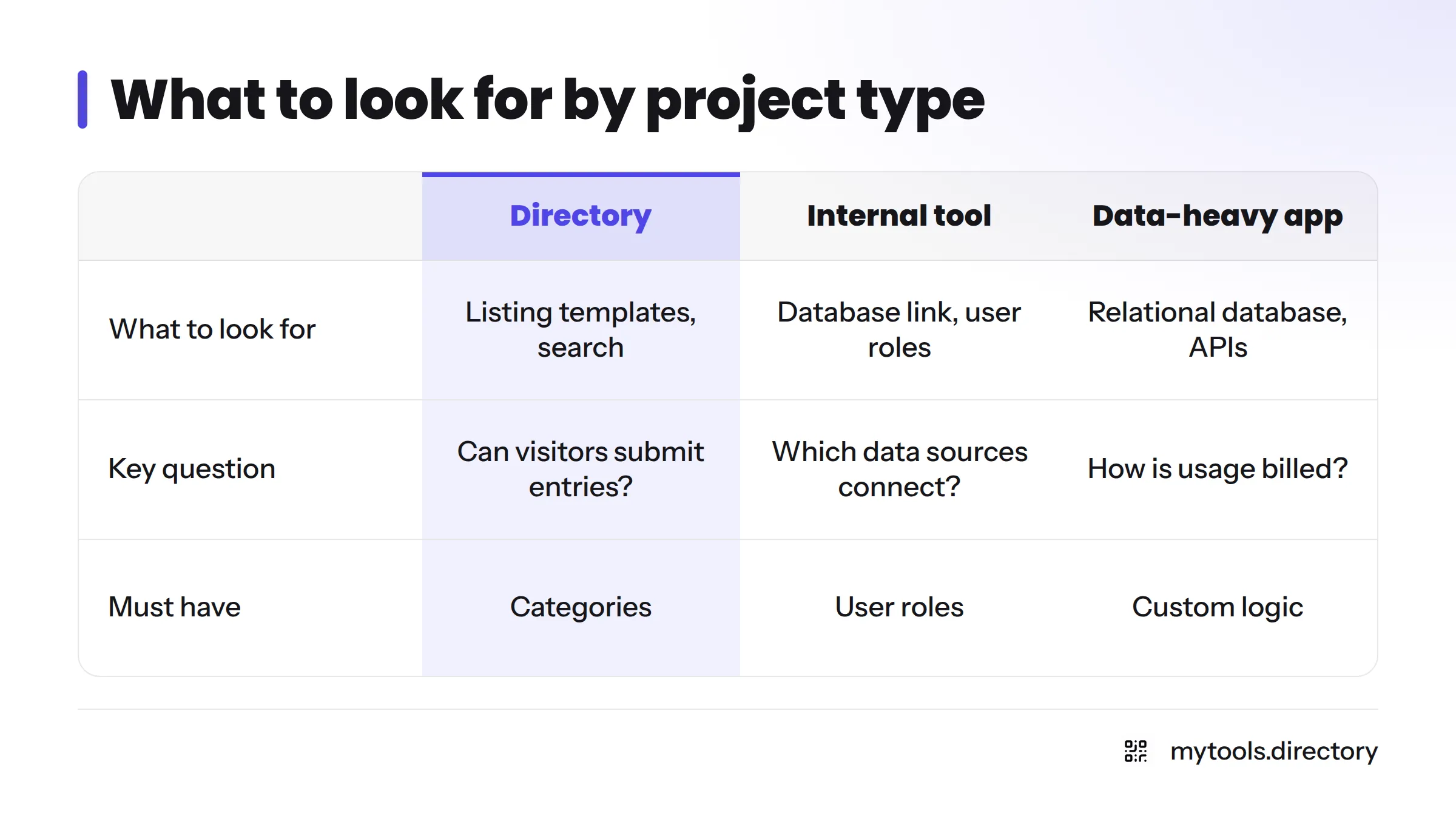
Picking a no-code app builder feels like the hard part. It gets easier when you choose by project type instead of hype.
Match the tool to the project type
| Project type | What to look for | Question to verify in the vendor's official docs |
|---|---|---|
| Directory or listings site | Built-in listing templates, categories, search, submission forms | Can visitors submit entries, and are there caps on listings? |
| Internal tool or dashboard | Spreadsheet or database connection, user roles | Which data sources connect natively? |
| Mobile-first app | Native or installable output, device features | What does publishing to the app stores require on this plan? |
| Data-heavy app with workflows | Relational database, custom logic, APIs | How are records, workflows, and usage billed? |
Tools such as Glide, Bubble, and Adalo each lean toward different rows of this table, so read each vendor's current docs before deciding. For a directory, Directify was the right fit for me because the listing structure, categories, and search came ready-made. My Directory Tool Guide explains that build in more detail.
Four questions before you commit
- Templates: Is there a starting template close to your core user flow?
- Data model fit: Can it store your "things" and their relationships (see Step 3)?
- Integrations: Does it connect to the tools you already use, such as email, forms, or payments?
- Exit and limits: How hard is it to leave, and what do free tier limits cap?
That last question needs a plain definition. Vendor lock-in means your app, data, or logic is hard to move once you build on one platform. Check whether you can export your data (CSV is the usual minimum) and which free tier limits apply, such as records, users, or app-store publishing. Pricing and limits change, so confirm them on the vendor's current pricing page.
Want a shortlist rather than a framework? Browse the no code app builders hub, or see our best no code app builder options for solo founders. This guide stays on process.
Step 3: Map Your Data and Content Structure
Every app is a set of "things" with details. Name them before you build, and the screens almost design themselves.
List your "things" and their fields
A no-code database is a spreadsheet-style store where each row is a record and each column is a field. Here is the structure I used for directory listings:
| Field | Type | Example |
|---|---|---|
| Name | Text | "Example Tool" |
| URL | Link | https://example.com |
| Category | Single choice | No-Code |
| Tags | Multiple choice | forms, automation |
| Description | Long text | One or two plain sentences |
Decide relationships and where the data lives
Ask whether one thing belongs to many others. One category holds many listings, so category becomes its own table linked to listings. Keep fields small and consistent. Messy data is the most common reason a good app feels broken.
If your app mostly creates, reads, updates, and deletes records, read CRUD App No Code next. It covers that pattern in depth.
Step 4: Build the Core Screens First, Starting from a Template
Templates save more time than any other shortcut. Pick the one nearest your flow from Step 1 and edit it. Resist rebuilding layouts from a blank page.
Then build the happy path before edge cases. The happy path is the flow where everything goes right. Get it working end to end, and only then handle empty states and errors.
Core screens checklist:
- A landing or home screen that states the one job
- The main list or search screen
- A detail screen for a single record
- The action screen (form, booking, submission)
- A confirmation screen
Step 5: Add Logins, Payments, and Integrations Only If Needed
Every feature adds testing, cost, and things that can break. Add each one only when your core flow demands it.
Logins: when you need them
You need user authentication when people must see their own data, save items, or submit content tied to an account. Public browsing apps often need none.
Payments: when you need them
Add payments once users have shown the core flow is worth paying for. Before committing, check the builder's official docs for supported payment providers and fees.
Integrations: connect one thing at a time
Integrations link your app to other tools through connectors, APIs, and webhooks. Add one, test it, then add the next. Our guide to no code automation tools shows common patterns, and the Zapier guide and Typeform guide cover two popular connectors.
Step 6: Run a Pre-Launch Check
This checklist is the second reusable asset in this guide. Run it on a clean account, not your admin login.
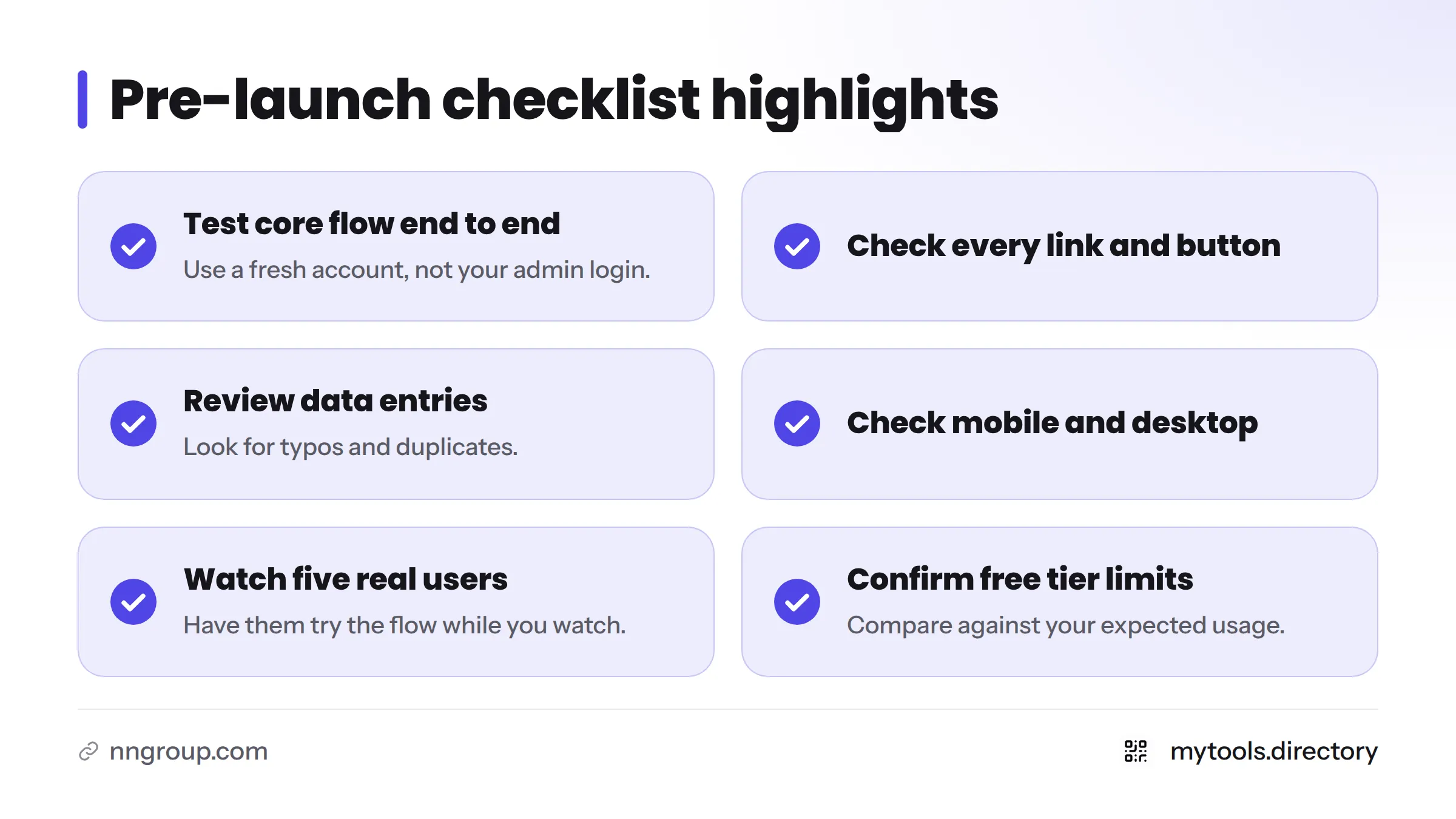
Pre-launch checklist:
- The core flow works end to end on a fresh account
- Every link and button goes where it should
- Data entries are reviewed for typos and duplicates
- Mobile and desktop views both look right
- Forms and notifications actually arrive
- Five real users try the flow while you watch
- Free tier limits are confirmed against your expected usage
- Export options are noted in case you ever move
- Analytics are in place
- A support contact is visible
Five testers is a practical target, not a scientific rule. Usability researchers at the Nielsen Norman Group found that testing with about five users surfaces most major usability problems, and that several small rounds beat one big one.
This pre-launch check does not cover legal, privacy, or security requirements. Check those separately for your situation.
Step 7: Hand Off to Launch and Plan Iteration
Building is not launching. Launch tactics have their own guide on how to launch a product, so here is only the hand-off:
- Fix what the five testers found.
- Ship a small first version.
- Collect feedback weekly, fix one thing at a time, and ship small.
Sharing progress openly helps. See Build in Public for a practical approach.
Next steps: browse the No-Code Tools Directory to pick your builder. After launch, submit your product to MyTools so other founders can find it.
Shortcuts That Saved Time (and Mistakes to Skip)
From building this directory, here is what I would repeat:
- Writing the one-sentence problem first. It killed three feature ideas before they cost anything.
- Starting from a template. I edited instead of designing.
- Entering data in a consistent format from day one. Cleaning it later is miserable.
- Postponing accounts and payments. The core flow came first.
And here is what I would skip:
- Choosing a tool before knowing my data fields.
- Polishing visuals before anyone had used the flow.
- Connecting several integrations at once, then not knowing which one broke.
I have not tracked exact build hours or costs, so I will not quote any. Your numbers will vary with scope and tool.
FAQ
Yes, for many common projects such as directories, internal tools, and simple mobile apps. You still need to think clearly about your user flow and data. The tool removes the programming, not the planning. Start small and follow the order above.
Many builders have free plans, but they usually cap records, users, or publishing options. Paid plans often lift those caps. Pricing changes, so check the vendor's current pricing page before you depend on a free tier.
Write the one-sentence problem, sketch a three to five screen core user flow, pick a builder with a matching template, and build only the happy path. Skip logins and payments until testers ask for them. Ship it to five real users.
AI tools can generate app drafts from a text prompt, and some builders include AI features. You still need to define the problem, check the data, and test the result. Treat AI output as a first draft, not a finished product.
Pick a builder that supports AI features or API connections, define the one task the AI performs, and wire it into your core user flow. Test with real inputs. Our AI-powered products catalogue lists indie options to try.
Some do, through ads, subscriptions, in-app purchases, or paid upgrades. Many earn nothing. Free is a pricing choice, not a business model, so decide how the app will pay for itself before you build features.
Traditional apps need front-end code, back-end code, and a database. No-code app development replaces these with visual blocks, so you configure instead of program. Standard workflows need no code at all. Unusual logic may still call for it.
Choose by project type, data needs, integrations, and exit risk, using the Step 2 table. Verify limits in each vendor's docs. For comparisons, see our best no-code tools for indie hackers.
Vendor lock-in is when your app, data, or logic is hard to move away from one platform. Reduce it by choosing tools that export your data, keeping a backup copy, and documenting your workflows.
No-code may be a poor fit when you need highly custom logic, very large scale, strict performance control, or features the platform does not support. If a builder's limits block your core flow, that is your signal to look at custom development.
Looking for a web-only or mobile-only build? Those paths have their own guides on making a web app and no code mobile app builders. Ready to start? Pick your builder in the no-code category.