If you searched "crud it", here is the short version. CRUD stands for create, read, update, delete: the four things people do to records in almost every app. A CRUD app lets users do those four things through forms and lists, and you can build one without writing code. Define your data, connect a no-code database, then add forms and list views.
I run a hand-curated directory, so I work inside this pattern every week. Let's break it down.
What Is CRUD? Create, Read, Update, Delete Explained
A CRUD app is software built around managing records. Think customers, orders, tasks or directory listings. Users add them, look them up, fix them and remove them. That's the whole idea.
The four CRUD operations in plain language
- Create: add a new record, such as a new listing.
- Read: view records in a list, a search result or a detail page.
- Update: change a field on an existing record.
- Delete: remove a record you no longer need.
CRUD is not a tool or a programming language. It is a pattern, and developers use it everywhere. That is why freeCodeCamp's CRUD explainer and similar tutorials lean on code. The pattern itself works fine without it.
How CRUD operations map to forms, list views and a database
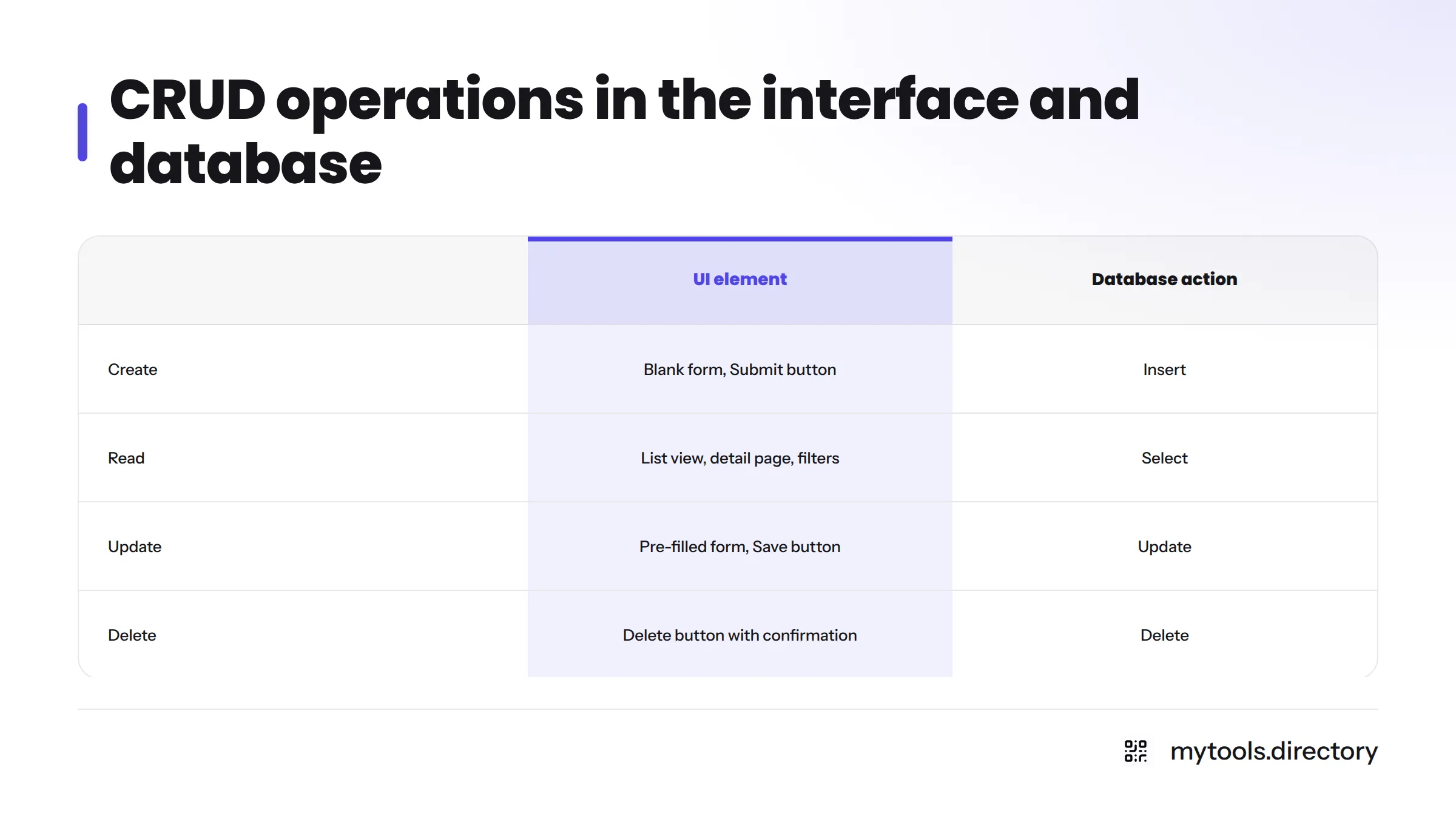
Each operation shows up twice: once in the interface and once in the database. Here is the mapping:
| Operation | What the user does | Typical UI element | Database action |
|---|---|---|---|
| Create | Adds a new record | Blank form with a Submit button | Insert |
| Read | Browses or searches records | List view, detail page, filters | Select |
| Update | Edits an existing record | Pre-filled form with a Save button | Update |
| Delete | Removes a record | Delete button with a confirmation | Delete |
Developers also map these to HTTP methods (POST, GET, PUT or PATCH, DELETE), which MDN Web Docs covers in detail. In SQL, the same four actions are INSERT, SELECT, UPDATE and DELETE.
Every CRUD app has three layers:
- Front end: the forms and list views people see. This is your CRUD UI.
- Backend: the logic and rules that handle each request.
- Database: where the records live.
A Directory Is a CRUD App in Disguise
When I add a tool to MyTools, I am running create. When a visitor browses a category, they are running read. I know this because I do all four operations by hand, constantly. If you want the full picture of building one, see this directory building guide.
Records and fields
One listing is one record. Its fields are the pieces of data it holds:
- Name
- URL
- Description
- Category
- Tags
- Rating
That list of fields is your data model. Get it right early and everything else gets easier.
CRUD operations on a listing
- Create: I fill in a form with the name, URL and description, then save.
- Read: visitors see listings in a grid, filter by category and open a detail page.
- Update: a tool changes its pricing or tagline, so I open its record and edit the field.
- Delete: a tool shuts down, so I remove the listing. I hide a record first and delete it only when I'm sure.
Categories, tags and ratings are structured data
Categories, tags and ratings are fields too, but they connect records to each other. A category groups many listings. A tag adds a flexible label. A rating is a number you can sort by. Store them as structured fields instead of free text, because that is what makes filtering work.
How to Build a CRUD App With No Code, Step by Step
This is the build order I recommend, and it works with any tool.
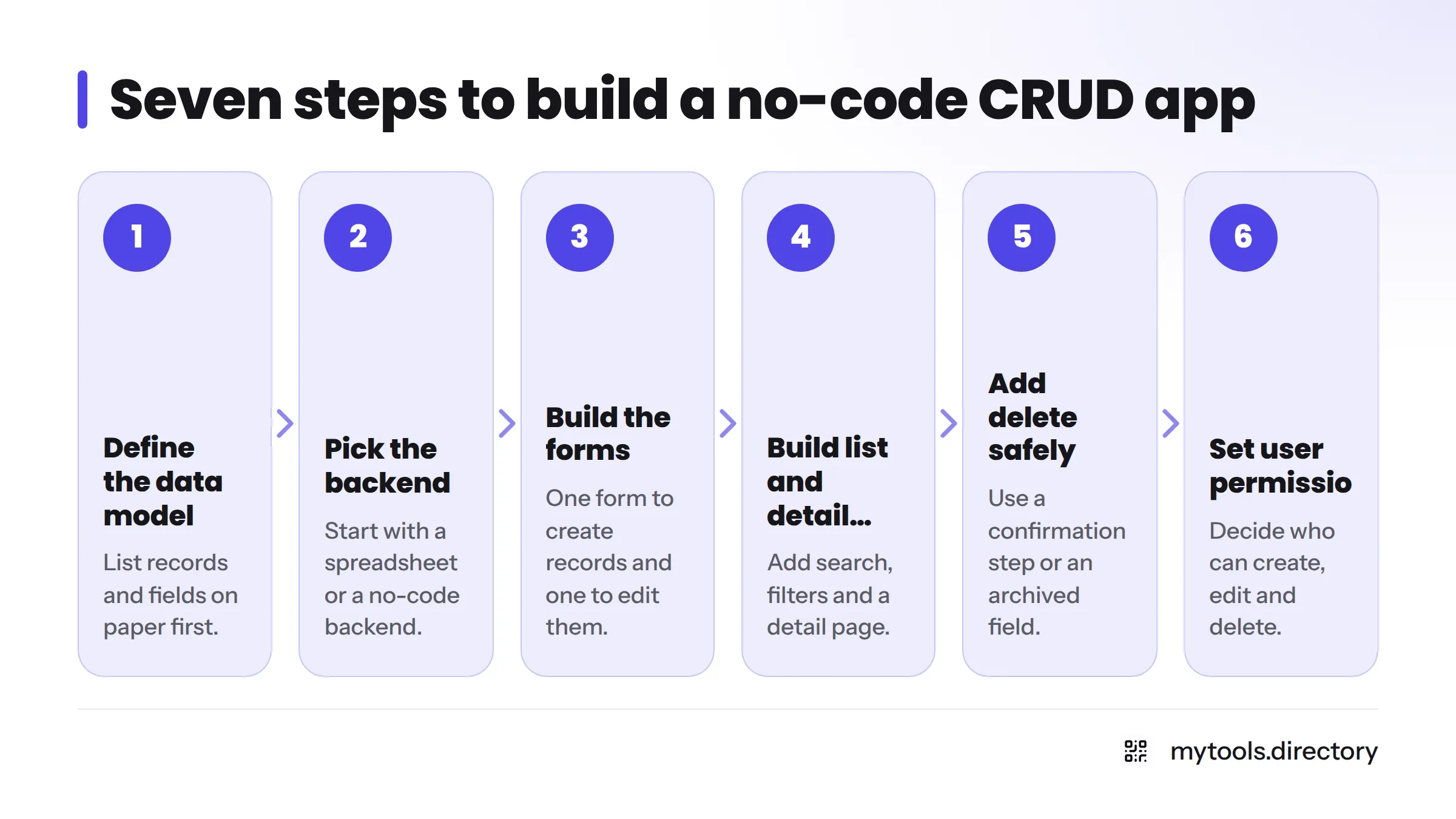
Step 1: Define the data model
List your records and their fields on paper first. Decide which fields are required, which are choices (like category) and which are free text.
Step 2: Pick the backend
You need somewhere to store records. The simplest start is a spreadsheet backend, where each row is a record and each column is a field. When you need more structure or an API, a no-code backend like Xano is one route. I won't walk through setup here.
Step 3: Build the forms
You need one form to create records and one to edit them. They usually share the same fields. Mark required fields and use dropdowns for categories.
Step 4: Build the list and detail views
This is the read side. Add a list view with search and filters, plus a detail page for each record. Most users spend the bulk of their time here, so keep it clear.
Step 5: Add delete safely
Delete is the riskiest operation. Add a confirmation step. Better still, add an "archived" field so you can hide a record without destroying it.
Step 6: Set user permissions
Decide who can create, edit and delete. A common split: everyone reads, staff edit, and only an owner deletes. That is a design choice, not security advice, so check your tool's documentation to see how it enforces roles.
Step 7: Test with messy data
Enter bad data on purpose. Try empty fields, very long text, duplicate records and odd characters. Fix what breaks before real users find it.
Build checklist:
- Records and fields written down
- Backend chosen and connected
- Create and edit forms working
- List view with search and filters
- Delete confirmation or archive field
- Permissions assigned by role
- Tested with duplicates and blanks
No-Code Tools for CRUD Apps, Grouped by Job
Tools fall into three groups. I list categories here and skip feature and pricing claims, so check each vendor's own site for current details.
| Category | What it does | Examples |
|---|---|---|
| Spreadsheet or database backend | Stores records in rows and columns | Google Sheets, Airtable |
| No-code backend | Adds an API and business logic | Xano |
| Front-end, internal tool builder or admin panel builder | Builds the forms and list views | See the no-code app builders for the front end |
If you want an admin panel with no code, the third row is where to look. An internal tool builder usually gives you the forms, tables and role settings in one place.
For a curated shortlist aimed at solo builders, start with the best app builders for solo founders or the wider best no-code tools roundup. MyTools is built around indie-made tooling like this, so it is a quick place to compare options side by side.
Where No-Code CRUD Apps Hit Their Limits
These are typical tendencies, not measured figures:
- Scale: very large datasets can slow down, depending on the tool.
- Custom logic: unusual calculations or multi-step rules can be awkward to build.
- Complex permissions: per-record or per-field rules are harder than simple roles.
- Portability: moving data and logic to another tool can take real work, so check export options early.
No-code does not replace custom development in every case. It covers a lot of everyday needs, and you can outgrow it.
Is a No-Code CRUD App Right for You?
Run this quick test. No-code is probably a fit if most answers are yes:
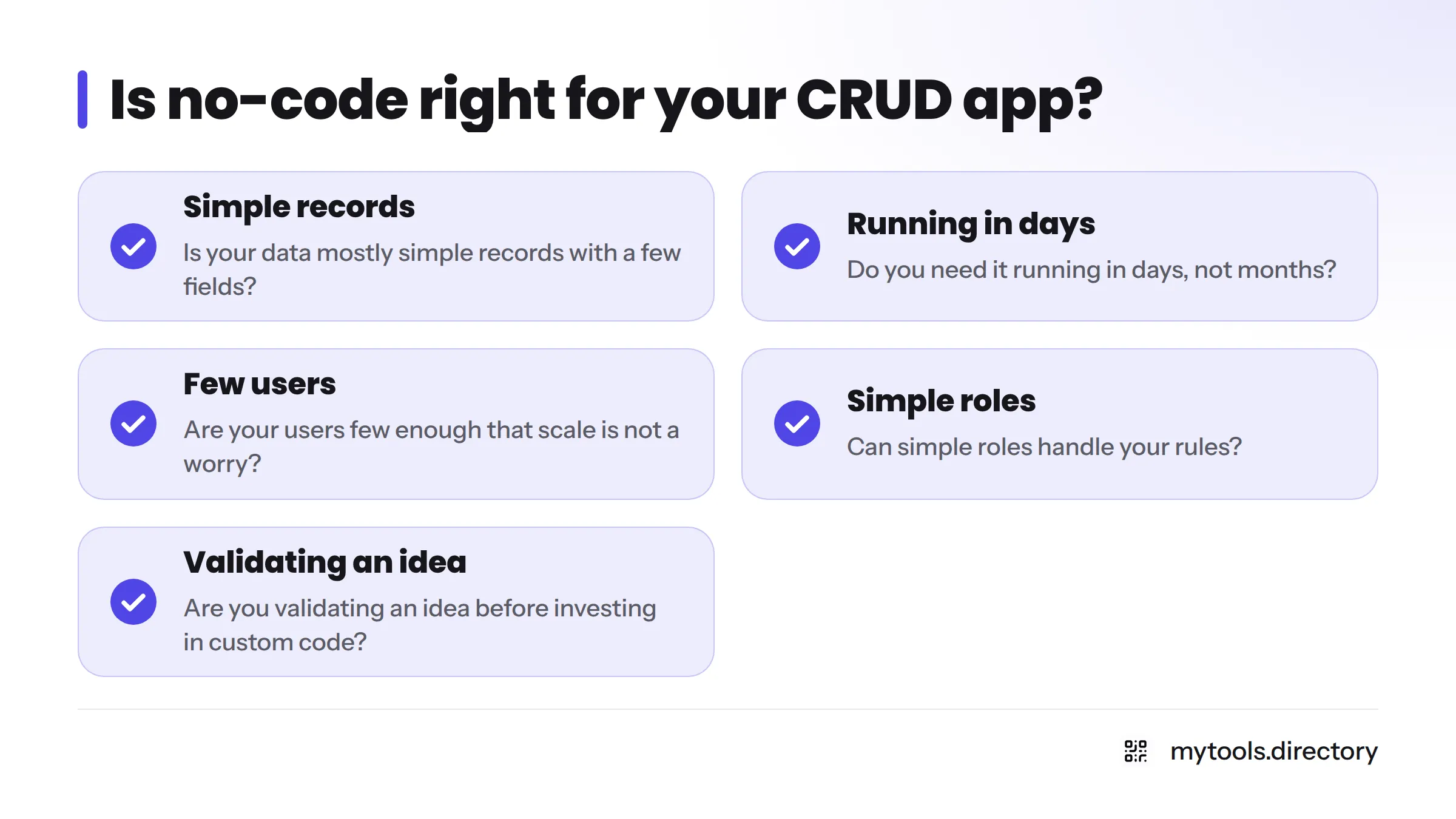
- Is your data mostly simple records with a few fields?
- Do you need it running in days, not months?
- Are your users few enough that scale is not a worry?
- Can simple roles handle your rules?
- Are you validating an idea before investing in custom code?
If you answer no to the last four, plan for custom development or a hybrid.
Next steps: browse no code automation and database tools and pick a starting stack.
FAQ
CRUD maps to four SQL statements: INSERT (create), SELECT (read), UPDATE (update) and DELETE (delete).
Yes. Most apps that store data rely on these four operations, whether built with code or without it.
The term is informal. It usually means a role or task focused on building or maintaining basic data-management screens and the logic behind them.
You need somewhere to store records. That can be a full database, a no-code database or a spreadsheet.
A spreadsheet can act as the backend. Add a front end with forms and list views, and you have a CRUD app.
As a search, it usually means "what is CRUD." Casually, it means handling records with create, read, update and delete.