By the MyTools operator. I checked feature and plan details against Readymag's public pages in October 2026. Plans change often, so confirm anything price-related before you buy.
I run a directory of indie tools, and I build my own pages on no-code platforms. Every few months a founder asks me about a striking site that "doesn't look like a template." Nine times out of ten, it was built in Readymag. Here is what it is, and whether you should use it. Think of this as a short Readymag review from someone who ships pages on tools like it.
What Is Readymag? A 60-Word Answer
Readymag is a browser-based, no-code, design-led publishing tool. Instead of a rigid grid, it gives you a free-form canvas where you place text, images, video, and embeds exactly where you want them. You add scroll animations, publish to a custom domain, and ship websites, portfolios, editorials, presentations, and microsites without writing code.
Readymag in one line: a canvas-first web design tool for visually distinctive pages, not a CMS or a store.
As a design-led website builder, it sits closer to a layout program like Adobe InDesign than to a template engine. That one difference explains both its appeal and its limits. If you are searching for a Readymag website builder for interactive web publishing, expect a page-by-page design tool rather than a site factory.
What Readymag Is Used For
Here is where I see it used most:
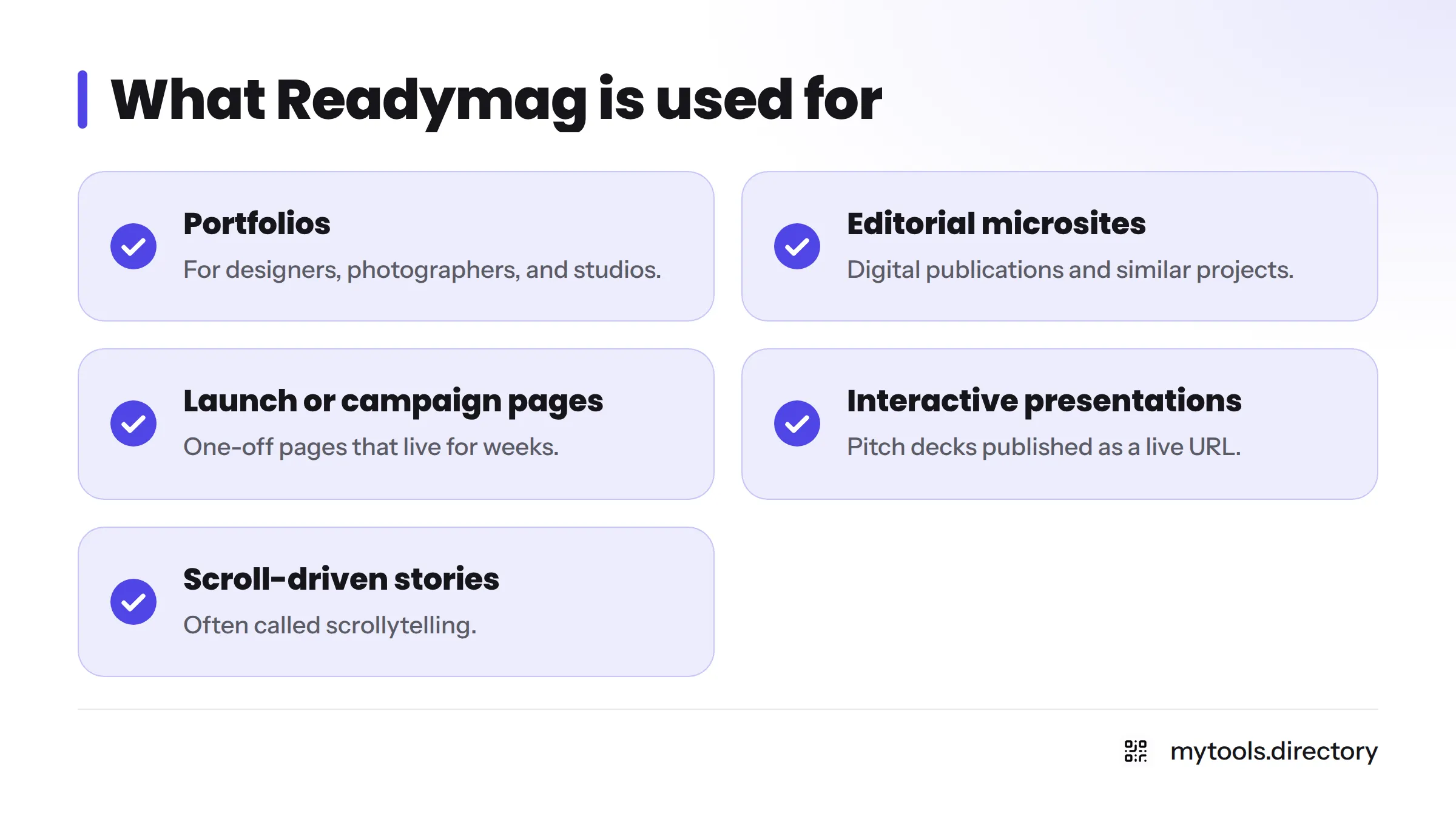
- Portfolios for designers, photographers, and studios
- Editorial microsites and digital publications
- One-off launch or campaign pages
- Interactive presentations and pitch decks
- Scroll-driven stories (often called scrollytelling)
Portfolios and editorial microsites
This is the home turf. A Readymag portfolio works because layout freedom suits work where the page itself is the proof of taste. Readymag also runs a yearly Websites of the Year showcase that highlights this kind of work.
Landing pages and launch pages
A launch page lives for weeks, not years. You rarely need a blog engine or deep SEO for it, so the canvas model fits. You trade structure for personality.
Presentations and interactive stories
Pages scroll, slide, and animate on triggers, so you can publish a deck or a narrative as a live URL. That beats emailing a PDF.
Who Readymag Suits (and Who It Doesn't)
Let's break it down with a quick fit check.
| Good fit | Probably skip |
|---|---|
| Designers, studios, agencies | Content-heavy sites that depend on organic search |
| Founders with a strong visual brand | Online stores and checkout flows |
| Short-lived launch or campaign pages | CMS-driven blogs with hundreds of posts |
| Pitch decks and interactive stories | Teams that need strict template consistency |
Launch-page fit scorecard. Score one point for each "yes":
- Is the page visually distinctive on purpose?
- Will it live under a few months, or change rarely?
- Can you skip a blog, store, and database?
- Do you have an hour to learn a canvas editor?
Three or four points means Readymag deserves a trial. Two or fewer means a standard builder will serve you better.
Readymag Features: Layout, Motion, Embeds and Publishing
Free-form canvas layout
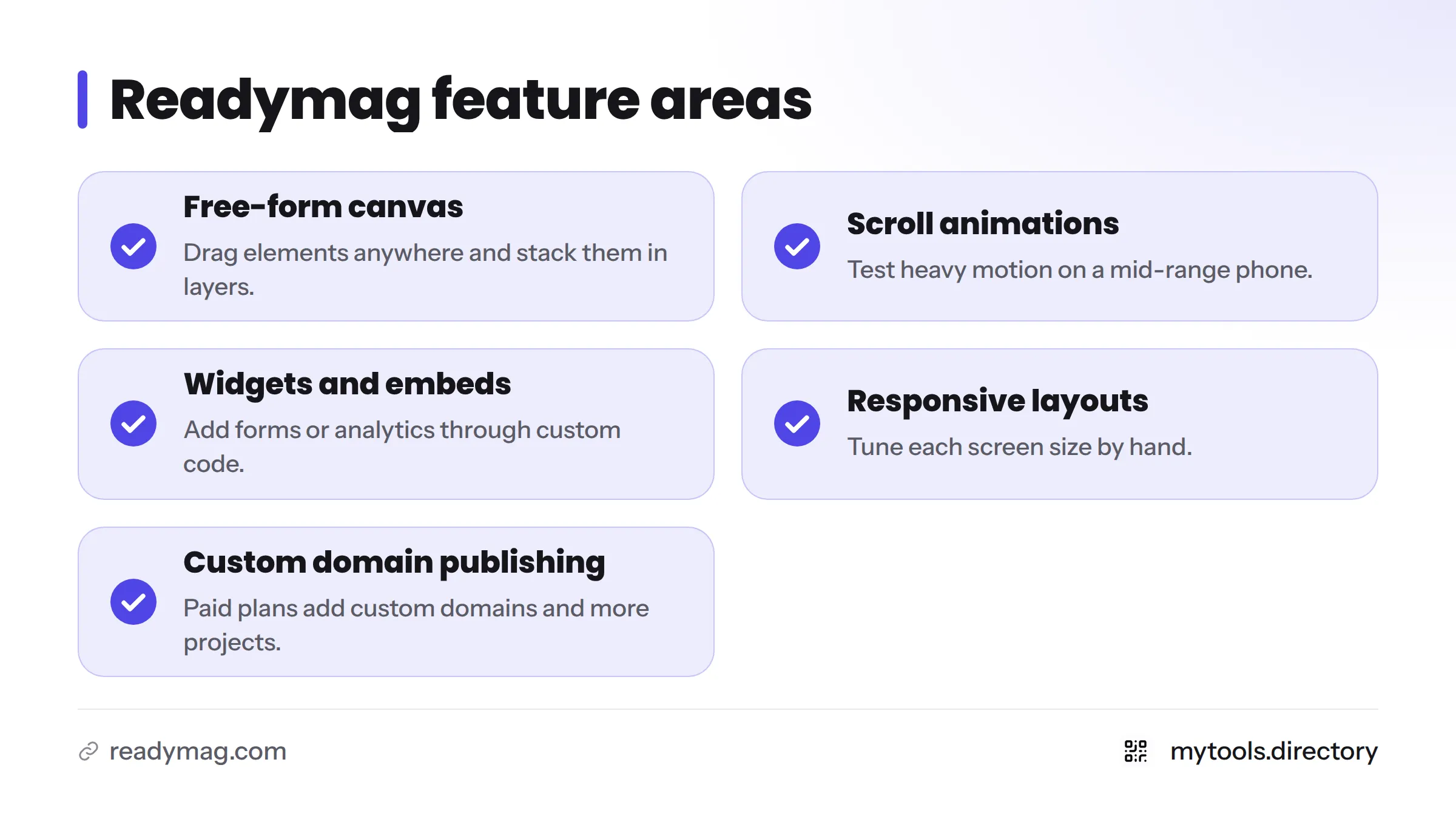
Most builders snap content into rows and columns. Readymag lets you drag elements anywhere and stack them in layers. You get precision, and you also own the job of making it all hold together.
Browsing for Readymag templates? The tool leans on a blank canvas, so plan to design rather than pick.
Scroll animations and transitions
You can animate elements as people scroll, or fire effects from triggers. Heavy motion looks great on a fast laptop. Test it on a mid-range phone before launch.
Widgets and embeds (video, forms, custom code)
Readymag ships widgets for common needs and supports embeds. You can drop in a form from a tool like Typeform or add analytics through custom code. Check Readymag's help center for the current widget list.
Responsive design and mobile layouts
Layouts adapt across screen sizes, but you tune each one by hand. Budget real time for mobile, because a canvas does not reflow itself the way a grid does.
Custom domain, publishing, and Readymag pricing
Readymag offers a free way to start designing and publishing, and paid plans add things like custom domains and more projects. So Readymag free is a fair way to test the editor, though you will likely want a paid plan for a branded domain. Limits shift, so read Readymag's pricing page on the day you decide. Promotional discounts also appear from time to time.
Workflow tip: sketch the rough layout in Figma first, settle your type and spacing, then rebuild it in Readymag. You can also upload custom fonts inside the editor, which keeps your brand typography intact.
Limits and Trade-Offs to Know Before You Commit
I like Readymag, and I still would not use it for everything. Here is the honest list:
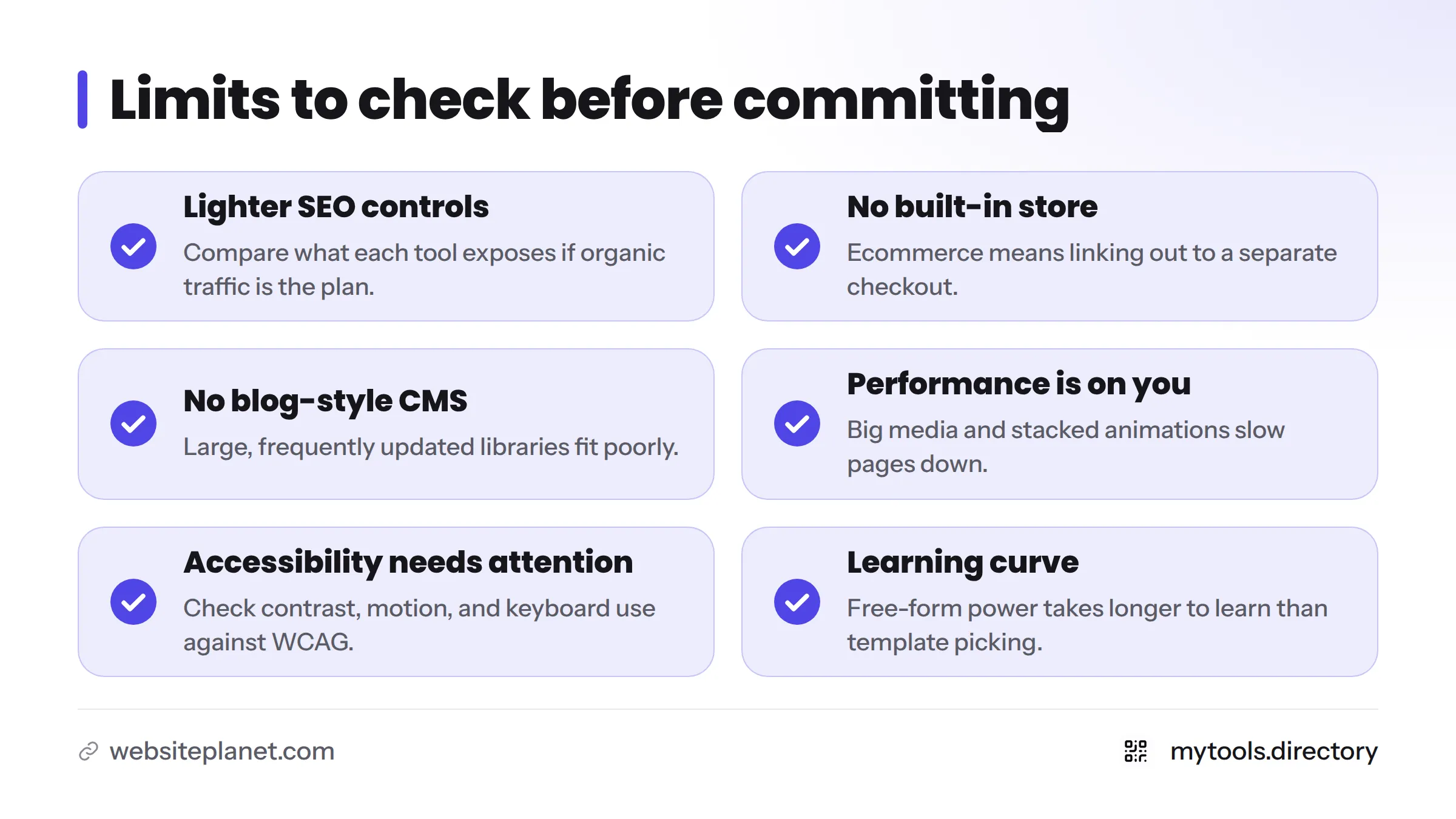
- SEO controls are lighter than in dedicated builders. If organic traffic is your plan, read Google Search Central's SEO Starter Guide and compare what each tool exposes.
- No built-in store. Ecommerce means linking out to a separate checkout.
- No blog-style CMS. Large, frequently updated content libraries fit poorly.
- Performance depends on you. Big media and stacked animations slow pages down.
- Accessibility needs attention. Check contrast, motion, and keyboard use against WCAG.
- Learning curve. Free-form power takes longer to learn than template picking.
Independent reviewers land in a similar place. WebsitePlanet's Readymag review describes it as good for some but not for most, pointing at weaker SEO and professional features.
Readymag vs Webflow, Framer and Squarespace for an Indie Launch
| Readymag | Webflow | Framer | Squarespace | |
|---|---|---|---|---|
| Layout model | Free-form canvas | Visual HTML/CSS with a box model | Canvas with responsive stacks | Template sections |
| Animation | Strong, trigger-based | Strong, interaction panel | Strong | Limited |
| SEO and CMS | Lighter | Deep, built-in CMS | Built-in CMS | Solid, blog-ready |
| Ecommerce | Not built in | Built-in | Not a store focus | Built-in |
| Learning curve | Moderate | Steeper | Moderate | Gentle |
| Best for | Distinctive one-off pages | Content and marketing sites | Polished product sites | Simple sites and stores |
Check each tool's own pages, such as Webflow, Framer, and Squarespace, before you buy, because features and plans move.
In the Readymag vs Webflow matchup, Webflow wins on CMS depth and SEO, while Readymag wins on layout freedom for a single expressive page.
My verdict: for an indie launch, I reach for Readymag when the page is a statement and a short-term asset. I reach for a standard builder when the page must rank, sell, or publish weekly. Is Readymag better than Framer? Neither wins outright. Framer suits product sites that need a CMS and tidy responsive behavior. Readymag suits expressive, editorial layouts.
Decision tree:
- Need a CMS, strong SEO, or a store? Use a standard builder.
- Need a one-off, visually distinctive launch page? Use Readymag.
Still comparing options? Browse our curated no-code platforms for building sites and apps and the best no-code tools for indie hackers.
Verdict: When to Use Readymag in 2026
Use Readymag when design is the point and the lifespan is short. Skip it when search traffic, content volume, or checkout drives the business. Try the free start, build one page, and judge the result on a real phone.
Next steps: gather your design and branding assets, then line up where you will announce the launch using our startup directories for indie makers. Browse more picks at MyTools.
FAQ
People use it for portfolios, editorial microsites, launch pages, presentations, and interactive stories built on a free-form canvas.
Readymag has a free way to start designing and publishing, and paid plans unlock more, such as custom domains. Confirm current limits on the pricing page.
It depends on the job. Readymag favors expressive, editorial layouts. Framer favors polished product sites with a CMS.
Not as a built-in store. Most people link out to a separate checkout or embed one.
Open the typography settings in the editor and upload your font files, or pick from the library. Check the help center for supported formats.
Yes, on paid plans. Connect it in your project's publishing settings and follow the help center steps.